AYN Thor first-week setup: what actually matters
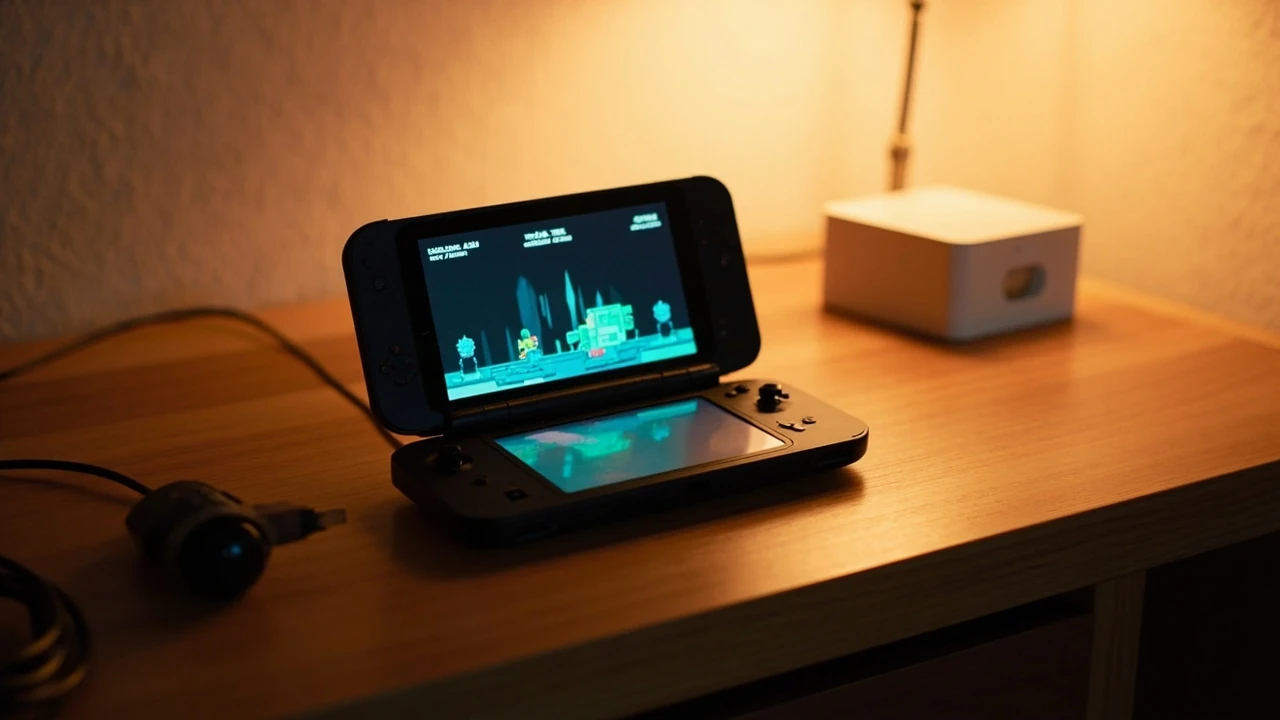
The AYN Thor is a clamshell Android handheld with two screens, marketed primarily at players who want a portable emulation machine rather than a typical smartphone-class gaming phone. When the box is opened, owners are usually staring at a freshly imaged device, an empty firmware partition, and a sprawling retro emulation scene that can feel overwhelming in the first hour. A sensible first week of setup is more about sequencing decisions than installing every available emulator, and the order in which firmware, front-end, cores, BIOS files, and controls are configured determines whether the device feels stable or fragile for the rest of its life.
Before chasing the deepest emulator list available, it helps to treat the AYN Thor as a small, specialized game development and content pipeline. You have a fixed hardware target, a list of emulated systems to support, BIOS prerequisites, control mappings, and performance budgets that change per core. The same skills used to optimize a small Unity or Godot build apply here: prioritize the workloads that matter, validate with measurement, and only add complexity when a real title needs it. The goal of this guide is to walk through a realistic first seven days with the device so that the AYN Thor becomes a reliable daily driver rather than a desk ornament.
Hardware and form factor: what the AYN Thor actually gives you
The AYN Thor is built around an Android-based SoC platform in a clamshell chassis, similar in spirit to a Nintendo DS or 3DS layout but running a full Android environment. The two screens are useful for touch-driven systems, DS-era titles, and front-ends that take advantage of the lower display as a menu surface. A USB-C port handles charging and wired peripherals, and Bluetooth is available for external controllers. Understanding this baseline matters because the way you configure the AYN Thor depends on whether the workload is CPU-bound (PlayStation 1, Nintendo DS), GPU-bound (Dreamcast, Nintendo 64, early Android-native games), or storage-bound (loading large disc images).
From a game development perspective, the device is effectively a small Android target. APK packaging, screen density, refresh rate, and touch input behave like any other Android handheld, which is why many owners sideload the same launchers used on phones and tablets. The interesting wrinkle is the dual-screen layout: it changes the user experience design constraints, because the lower screen can host a soft keyboard, an overlay menu, or a per-system second display without occluding the main game window.
Core specifications to keep in mind
While exact specifications vary by production revision, several parameters consistently shape how the AYN Thor should be configured for retro emulation:
- Android-based operating system with access to the Play Store and sideloaded APKs.
- Two physical displays, with the lower screen usable as a secondary surface for menus or DS-style layouts.
- Integrated controls, including dual analog sticks, d-pad, face buttons, and shoulder triggers suitable for 2D and 3D emulated workloads.
- USB-C port for charging, data, and wired controller or storage expansion.
- Bluetooth radio for external pads, headphones, and input accessories.
- Active cooling and a high-capacity battery intended for sustained play sessions rather than phone-class bursts.
Each of these affects setup. For example, two screens mean that the AYN Thor benefits from front-ends that can be configured to show a master list on the bottom and artwork on the top, while a single-screen front-end wastes half of the device’s surface area. The integrated controls mean that default button mapping should be tested for ergonomic comfort before trusting community presets, especially for systems with more buttons than the panel exposes natively.
Unboxing and first boot: the order that saves you time
The most common mistake new owners make is to load every emulator on day one. A more sustainable order is to verify the device, update firmware, establish a storage layout, and then add emulators one system at a time, testing each before moving on. A clean first week avoids the rabbit-hole problem that the broader retro scene is famous for, where a stack of half-configured cores, mismatched BIOS files, and competing front-ends leaves the device effectively unusable.
Step 1: verify the device and charge fully
Before installing anything, fully charge the AYN Thor, then let it run a stock interface for at least a few hours. This confirms that the panel, battery, and SoC are healthy, and it lets the operating system apply any pre-bundled firmware updates without you troubleshooting in parallel. If the device shows an abnormal battery drain, screen flicker, or instability during this first idle period, those are warranty issues that are far easier to address before any custom configuration is layered on top.
Step 2: capture stock firmware and a recovery image
Once the AYN Thor is stable, take a backup of the stock firmware. This usually means using a manufacturer-provided PC tool to dump the existing image. The backup is invaluable if a future emulator installation breaks boot, because it gives a known-good restore point. Treat the AYN Thor the same way you would treat a developer kit: never change the build environment without a clean snapshot to return to.
Step 3: design a storage layout
Retro games come in two shapes: small ROM files and large disc images. A flat “ROMs” folder on internal storage is workable for early 8-bit and 16-bit systems, but PlayStation, Dreamcast, and later discs can quickly exceed tens of gigabytes each. A practical layout splits the internal storage into system, front-end, BIOS, ROMs, and discs:
| Folder | Purpose | Typical contents | Notes |
|---|---|---|---|
| System | Firmware and OS images | Stock firmware dump, recovery files | Keep one directory level deep for easy restore |
| Frontends | Launcher and shell APKs | Front-end APKs, skins, themes | Mirror on a PC in case of reset |
| BIOS | Per-system firmware files | Verified BIOS dumps only | Never random BIOS packs; verify hashes |
| ROMs | Cartridge-based games | NES, SNES, Genesis, GBA, DS, etc. | Subfolder per system keeps scans fast |
| Discs | CD and DVD-based games | PlayStation, Dreamcast, PSP, PS2 | Consider external storage for large libraries |
Keeping the storage layout explicit turns the AYN Thor into a maintainable build. When a new emulator needs a new BIOS, you know exactly where to drop it. When a community update breaks a core, you can roll back by replacing one folder rather than re-imaging the device.
Step 4: update firmware and base Android components
With a backup in hand, run the official firmware update tool. AYN devices typically bundle a utility that flashes the latest published firmware and bootloader combination. After flashing, reboot into the stock interface, confirm that both screens work, and validate that audio, Wi-Fi, and Bluetooth are functional. A simple smoke test (boot, connect to Wi-Fi, open a known-good system app) confirms that the update did not regress any peripheral.
Step 5: install a front-end before installing emulators
It is tempting to install a dozen emulators first and then a launcher, but the better order is to install a front-end and a single emulator that you intend to tune. With the front-end already in place, every emulator you add later inherits a consistent library scan, theme, and input configuration. Installing emulators first usually means redoing the library scan multiple times and re-mapping controls in slightly different ways across each app.
Picking a front-end that respects the dual-screen layout
The front-end is the visual and interactive shell that ties the AYN Thor together. It is responsible for scraping box art, organizing systems, launching emulators with the correct ROM, and exposing quick menus. Because the AYN Thor has two screens, the front-end selection matters more than on a single-screen handheld, where any popular Android launcher will do.
What to look for in a front-end for the AYN Thor
- Support for two-screen layouts, including a bottom-screen menu and top-screen artwork.
- Configurable per-system emulator and core selection without restarting the app.
- Scraping support for box art, screenshots, and metadata with offline caching.
- Stable suspend or sleep behavior so that closing the lid does not crash an active game.
- Touch-friendly navigation for systems that do not map cleanly to a gamepad.
Two well-known options are commonly chosen for dual-screen Android handhelds. One focuses on a TV-style layout that scales well to the larger top screen, while the other is closer to a console skin with a more compact grid. The right choice depends on whether the lower screen is reserved as a menu surface or used as a secondary game display, which is itself a system-by-system decision.
Mapping the lower screen
Some owners leave the lower screen as a permanent menu surface, which makes every game look like a single-screen experience. Others use emulators that natively understand dual-screen layouts, such as Nintendo DS cores, and reserve the bottom screen for the touch-driven half of the game. A useful default is to start with the menu-surface approach, because it works for every system, and then selectively enable dual-screen behavior for the systems that genuinely benefit from it.
Choosing emulators: prioritize the systems you actually play
The retro emulation scene offers multiple cores per system, and the difference between them can be the difference between a smooth game and an unplayable one. The AYN Thor community has settled on a short list of priority emulators that cover the majority of systems that the device’s hardware can comfortably emulate. The phrase “priority” here is important: the goal is not to install every available core but to install the one that has the best stability and accuracy for each system you intend to play.
A practical first-week priority list looks like this:
| System | Recommended core or app | Why it is a priority | BIOS required |
|---|---|---|---|
| PlayStation 1 | Standalone PS1 emulator or RetroArch core | Most common disc-based library on the device | Yes |
| Nintendo DS | Dedicated DS emulator with dual-screen support | Demonstrates the AYN Thor’s hardware advantage | Optional, improves compatibility |
| Nintendo 64 | Standalone N64 emulator | CPU-sensitive, benefits from proper core selection | No |
| Sega Dreamcast | Standalone Dreamcast emulator | GPU-bound; benefits from per-title configuration | No |
| Game Boy Advance | RetroArch core or standalone GBA app | Lightweight, good for handheld-mode testing | No |
| Arcade (MAME) | MAME core with matched ROM set version | Demonstrates input mapping complexity | No |
| PlayStation Portable | Standalone PSP emulator | Heavy disc images, benefits from external storage | No |
Note that “recommended core or app” is a category, not a fixed application. The exact name of the emulator changes as the community migrates to new projects. What stays constant is the pattern: a small number of well-supported cores that have been validated on the AYN Thor’s hardware, and a matching set of BIOS files for the systems that require them.
Why BIOS files matter
Several systems, notably PlayStation 1 and certain arcade boards, require a BIOS file in addition to the game image. A common source of crashes and black screens is a mismatched BIOS dump, either from a wrong region or from a corrupted download. The safer approach is to dump BIOS files from hardware you own and to verify the hash of each file before placing it in the AYN Thor’s BIOS folder. Once the hashes are recorded, the same file can be re-validated after every firmware update.
Configuring controls: the difference between playable and comfortable
Default control mappings are usually functional but rarely comfortable. The AYN Thor’s integrated controls are similar in layout to a modern gamepad, with two analog sticks, a d-pad, four face buttons, and shoulder triggers. Mapping all of these to a single emulator is straightforward, but the difficulty appears when a single emulator needs to handle systems with different button counts and stick requirements. A 16-bit side-scroller rarely needs the right stick, while a Nintendo 64 game expects precise analog control. Treating the AYN Thor’s control layout as a per-system configuration is what separates a casual setup from a daily driver.
Steps to validate a control mapping
- Launch a representative game for the system, ideally one that uses every face button, both triggers, and both analog sticks.
- Open the emulator’s quick menu and verify that every physical input is recognized with the correct label.
- Run the in-game test or tutorial, if one exists, to confirm that the mapped buttons feel right in context.
- Save the mapping as a per-game or per-system profile rather than relying on the default global profile.
- Repeat for each system added to the AYN Thor, building a small library of profiles over time.
This is the same feedback loop a game developer would use when shipping a new build: define the input, run the test, capture the result, and adjust. The temptation to copy community presets is strong, but those presets are tuned to other people’s hands and other game libraries. The AYN Thor’s value rises sharply once the controls match the systems you actually play.
Performance, thermal behavior, and battery life
The AYN Thor is built to sustain heavier workloads than a typical phone, with active cooling and a large battery. Even so, retro emulation is not free, especially for systems near the upper end of the device’s supported range. Several habits keep performance predictable and extend the time between charges.
Resolution and frame pacing
Most emulators expose a render resolution and a frame-pacing option. Raising the internal render resolution above the native panel resolution rarely improves visual quality on a small screen and almost always costs frame time. The safer default is to match the original hardware resolution and use integer scaling where available. Frame pacing options, such as v-sync and audio sync, are more important than peak frame rate because the human eye is more sensitive to inconsistent timing than to a slightly lower average rate.
Thermal observations
The AYN Thor’s active cooling helps the SoC stay within its thermal envelope during long sessions, but the chassis still warms up under sustained load. Logging the device temperature during a session, even anecdotally, gives a baseline for future tuning. If a particular game is the first to thermal-throttle, it is a candidate for either a lower render resolution or a different core. Mapping thermals to specific titles is much more useful than a generic “the device gets warm” impression.
Battery and charging habits
Large batteries age best when they are not regularly drained to zero or stored at one hundred percent for long periods. For a daily-driver AYN Thor, the practical habit is to charge to around eighty percent for overnight top-ups and to let the device drop to around twenty percent before recharging. This is the same battery-care advice given to laptop and handheld PC users, and it transfers cleanly because the underlying lithium chemistry is the same.
Storage management and library hygiene
A retro library grows quickly. The AYN Thor’s internal storage is generous, but disc-based systems can fill it within a handful of large titles. A weekly maintenance routine keeps the device responsive and avoids the slow-scan problem, where the front-end takes minutes to enumerate a library that has grown to thousands of files.
Recommended storage practices
- Keep one folder per system, and avoid mixing cartridge and disc dumps in the same directory.
- Prefer CHD or compressed formats for disc images to reduce file size and scan time.
- Move finished or replayed titles to external storage, and keep the internal library curated to “currently playing.”
- Periodically verify the integrity of BIOS files and re-validate their hashes.
- Back up the front-end configuration folder, including scraped metadata, to a PC in case of a clean reset.
These habits mirror the asset pipeline of a small game studio: keep the working set small, archive the rest, and version the configuration. A front-end that scans only the working set is faster to navigate, and a curated library is easier to share with friends or pass on to a new owner.
Networking, cloud saves, and account management
Some emulators support cloud save syncing through third-party services. On the AYN Thor, this means linking a Google account, a cloud drive app, or a per-emulator cloud service. Treat cloud save configuration the same way you would treat a build server: only enable it for titles you have actually finished, and verify that the sync direction is correct before trusting it as a primary backup.
A common mistake is to enable auto-sync for in-progress saves. If the local file is overwritten by an older cloud copy, several hours of progress can vanish. A safer approach is to enable manual sync and only push to the cloud when a milestone is reached, the same way a developer tags a release commit rather than syncing every working build.
Common first-week pitfalls and how to avoid them
New owners tend to hit the same handful of issues. Most of them are not bugs, but configuration mistakes that can be solved with a small checklist.
Symptom: a game boots to a black screen
Black screens on a freshly set up AYN Thor are usually one of three things: a missing or wrong-region BIOS, an emulator that was launched with the wrong core, or a disc image that is not in a format the emulator supports. The diagnostic order is to check the BIOS first, then the core, then the file format. Each step is faster than reinstalling the emulator.
Symptom: controls are mapped to the wrong face buttons
If the A and B buttons feel swapped, or if the right stick triggers a menu instead of moving the camera, the issue is almost always a leftover profile from a previous system. The fix is to open the per-system profile, clear it, remap every input by hand, and save it as a fresh profile. The AYN Thor’s control layout is consistent enough that a single remap is usually reusable across the system, so this is a one-time cost per console generation.
Symptom: the front-end is slow to launch
A slow front-end usually means the library is too large for the scan settings. Reduce the visible working set, switch the scraper to incremental mode, and disable any visual effects that require shader work on launch. The AYN Thor’s hardware is more than capable of running a front-end, but like any game engine, it slows down when the asset pipeline is doing too much in the foreground.
Symptom: the device feels warm during light games
Warmth during light 2D games usually points to a misconfigured emulator that is rendering at a high internal resolution. For example, a Game Boy Advance game rendered at eight times its native resolution is wasted work for the SoC and the cooling system. Lower the internal scale to the original hardware resolution, disable any post-processing, and confirm that frame pacing is locked to the display refresh rate.
Comparing the AYN Thor setup to other Android handhelds
The AYN Thor sits in a specific niche between phone-class Android handhelds and dedicated emulation devices. The comparison is useful because it clarifies what the AYN Thor does better and where other devices are more straightforward.
| Attribute | AYN Thor | Single-screen Android handheld | Vertical phone-style handheld |
|---|---|---|---|
| Dual-screen support | Native, both screens usable | Single panel, lower screen wasted | Single tall panel |
| DS-style games | Excellent when paired with a DS emulator | Workable but cramped | Not native |
| Front-end flexibility | Two-screen layouts unlocked | Standard launcher layouts only | Standard launcher layouts only |
| Form factor | Clamshell, protective when closed | Slate, exposed screen | Slate, exposed screen |
| Setup complexity | Higher because of dual-screen configuration | Lower, single screen simplifies mapping | Lowest, familiar Android UX |
| Best fit | Owners who want DS-style or menu-on-bottom layouts | Owners who want a simpler daily driver | Owners who already use phones for emulation |
What stands out is that the AYN Thor’s complexity is a feature, not a bug. Owners who never use the lower screen can still get a perfectly good single-screen experience, and owners who invest in dual-screen configuration gain an experience that no single-panel handheld can match. The choice depends on whether the extra setup time is worth the layout flexibility, and that is a personal call rather than a technical one.
How this maps to a game developer’s mental model
It is worth pointing out the structural similarity between configuring the AYN Thor and shipping a small game. Both involve a fixed hardware target, a list of supported platforms, a content pipeline, and a series of validation passes. The first week of AYN Thor setup is the equivalent of a vertical slice: a small, curated set of systems is brought to a playable state, the controls are validated, and the configuration is captured so that the rest of the library can be added with confidence.
Game developers who are familiar with profiling, build pipelines, and platform-specific quirks usually adopt the AYN Thor faster than newcomers, because the device behaves like an unusually well-instrumented Android target. The same habits that produce a stable game build, including versioned configuration, per-target profiles, and measured performance, produce a stable handheld.
Frequently asked questions
How long does the first-week AYN Thor setup actually take?
For a careful owner, the first week of AYN Thor setup usually takes between three and six hours of focused work spread across several sessions. The unboxing, charge, and firmware update occupy the first hour, the storage layout and front-end installation take another hour, and the remaining time is spent on per-system emulator configuration, control mapping, and a few test games per system. Trying to do everything in a single evening usually leads to skipped validation steps and the kind of fragile configuration that the retro emulation scene is famous for.
Do I need a PC to set up the AYN Thor?
A PC is not strictly required, but it makes the AYN Thor setup much more reliable. A PC is the easiest place to verify BIOS file hashes, store backup firmware images, and keep a clean copy of the storage layout. It also gives a fallback transfer method if a future firmware update fails and the device needs to be re-flashed from a computer. Without a PC, every step is still possible from the device itself, but the safety net is much thinner.
Can I use the AYN Thor as a daily driver for modern Android games?
The AYN Thor runs Android and can launch standard mobile games, but its clamshell form factor, smaller screens, and integrated controls are optimized for retro workloads and touch-friendly Android titles. Fast-paced competitive mobile games that expect a tall screen and a touch-first input model will work but will not feel native. Owners who want a true modern Android gaming handheld should look at slate-style devices instead, while owners who specifically value the dual-screen layout will find the AYN Thor well suited to its intended use.
Is it safe to sideload emulators on the AYN Thor?
Sideloading is a normal part of the Android ecosystem, including on the AYN Thor. The risk is not the act of sideloading itself but the source of the APK. Emulators should be downloaded from the developer’s official site, a recognized GitHub release, or a trusted mirror. Avoid APK aggregators that bundle additional software or that re-sign installers, and always verify the file hash if the project publishes one. The AYN Thor’s security model is the same as any other recent Android device, so the usual precautions apply.
What is the most common mistake when configuring controls?
The most common control-mapping mistake on the AYN Thor is to copy a community profile designed for a different handheld. Profiles are tuned to a specific button layout, stick placement, and shoulder trigger order, and copying one from a different device usually leaves at least one input inverted or swapped. The faster path is to map the controls once by hand for each system, save the profile, and reuse it for every game in that system. The initial cost is small, and the long-term comfort gain is significant.
How do I know when a system is “done” and I can move to the next one?
A system is “done” when at least one representative game boots cleanly, all of the device’s physical controls are recognized, the audio is in sync, and the thermal behavior during a twenty-minute session is within the expected range. Moving to the next system before these conditions are met is how half-configured cores accumulate. The goal of the first week is to leave the AYN Thor in a state where every system either works reliably or is not installed at all.
Where can I find a vetted AYN Thor setup walkthrough?
Several independent AYN Thor setup guides have been published, and a useful starting point is the community-written walkthrough available at the AdInWalls AYN Thor simple setup guide, which describes a deliberately small initial configuration aimed at avoiding the rabbit-hole problem. Pair such a guide with the official AYN support pages for the most current firmware and tool downloads.
Should I keep the AYN Thor on the latest firmware?
Latest firmware is generally a good idea on the AYN Thor, because firmware updates typically include thermal, battery, and display improvements that the custom scene assumes. The exception is during the first week of setup, when a known-good firmware version gives a stable baseline for testing emulator configurations. Once the device is in a comfortable state, applying future firmware updates is the right habit, ideally with a backup of the current configuration taken before each update.




Leave a Reply